COLDCARD Q and Mk5: first-time setup
Unbox and check the tamper evidence, set a PIN, generate a seed on the device, and take a backup you have verified. One path, with the handful of places the two models differ called out as you reach them.
A COLDCARD is a deliberately awkward device. It has a slot for a memory card and no way at all to talk to your computer over the internet. That awkwardness is the product — every inconvenience in this guide is a connection somebody decided not to give an attacker.
This page covers both current models. They share the same codebase and the setup sequence is the same on each — Coinkite ships them as separate firmware builds with independent version numbers, but nothing below depends on that — so rather than two nearly identical guides, the differences are flagged at the four or five points where they actually change what you press.
Setting one up properly takes about forty-five minutes. Most of that is not fiddly; it is writing things down carefully and resisting the urge to hurry. Read the whole page once before you start, then work through it.
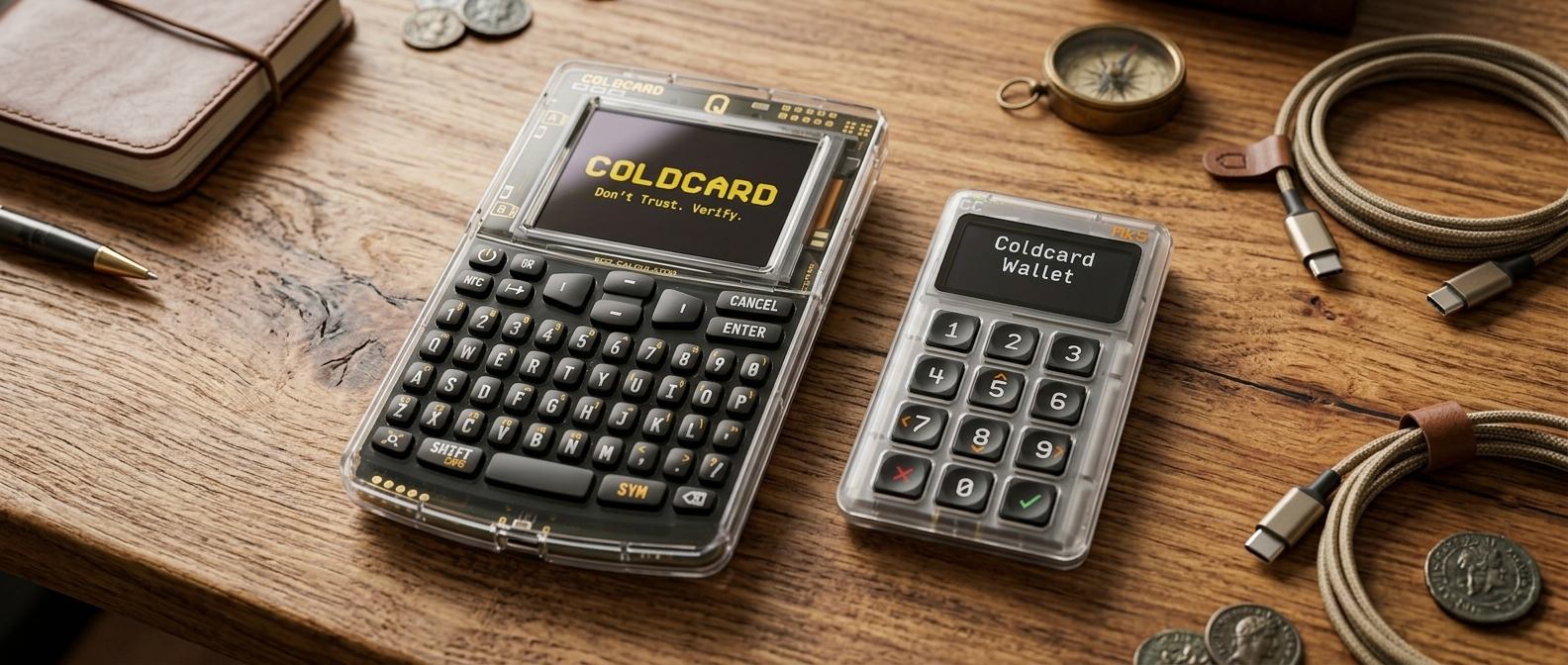
Which one are you holding?
Both models do the same job to the same standard, and nothing in this guide is easier or safer on one than the other. The differences are ergonomic, and they change four things during setup.
- Typing. The Q has a full QWERTY keyboard with dedicated QR and NFC keys. The Mk5 has a numeric keypad, so anything involving letters — a passphrase especially — is slower and more deliberate.
- Cards. The Q has two microSD slots and stows two spare cards under the battery door. The Mk5 has one slot, so a second backup copy means swapping cards.
- Power. The Q runs from USB-C or three AAA batteries, so it can be set up nowhere near a computer. The Mk5 needs USB-C power throughout.
- Getting data out. The Q has a built-in QR scanner and can move wallet exports and signed transactions by camera. The Mk5 uses microSD, USB, or NFC.
If you are choosing between them, that list is the whole decision. The security model and every step below are shared.
Before you start
- Your COLDCARD, unopened, bought from Coinkite or an authorised reseller.
- Two microSD cards — one for the encrypted backup, one spare. On the Mk5 you will swap them through the single slot.
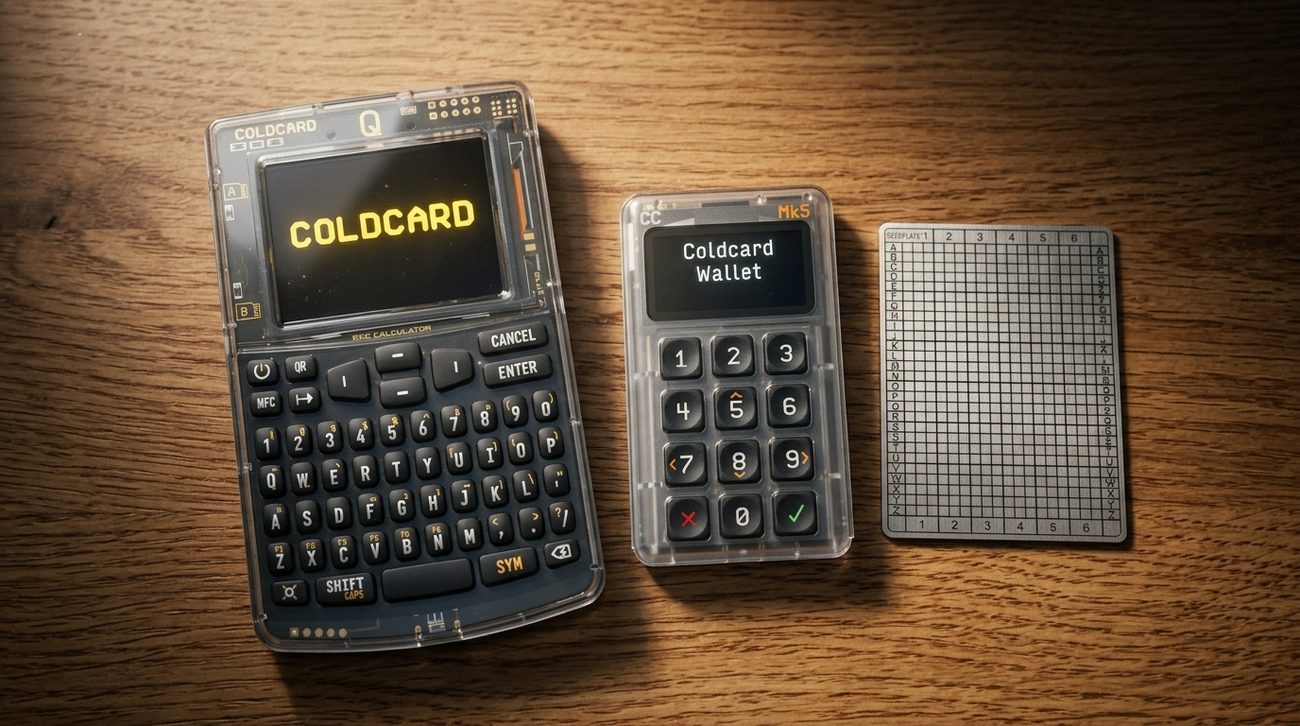
- A pen and the supplied backup card, or a metal backup plate.
- A USB-C cable and power source. On the Q, three AAA batteries instead if you would rather stay off a computer entirely.
- A private room, an uninterrupted hour, and no camera pointed at the desk.
- No bitcoin. Nothing here requires funds, and you should not move any until the check at the end passes.
1Check the packaging before you power it on
Coinkite ships both models in a sealed bag with a serial number printed on it. During first boot the device shows you a number of its own, and the two are meant to match. That is the whole trick: a bag that has been opened and resealed around a substituted device will not produce a matching number.
Read the number on the bag and keep it to hand. Inspect the bag for cuts, re-glued seams, or a second seal laid over the first, and look at the case seam and screen edge for scratches that suggest it has been opened.
- If anything about the packaging looks wrong, stop. Contact the vendor before continuing, and do not use the device.
- A device that arrives already showing a wallet, a PIN, or a set of recovery words is compromised. There are no exceptions to this and no innocent explanations worth gambling on.
COLDCARD Q quick start COLDCARD Mk5 quick start
2Set the PIN, and understand why it comes in two halves
The COLDCARD PIN is entered in two parts, and the gap between them is doing real work. You type the first half, the device responds with two words, and only then do you type the second half.
Those two words are derived from your prefix combined with a secret held inside that specific device. They will be the same two words every time you log in — which means if you are ever handed a device that shows you different words, you have caught a substitution before giving away the rest of your PIN. It is a small piece of design that quietly defeats a whole class of attack.
- Choose a PIN you can recall under stress, not one you will need a note to remember.
- Write the two anti-phishing words down and keep them with your backup material.
- Record the PIN somewhere durable, and somewhere separate from your recovery words.
- On the Mk5, the PIN is entered on the numeric keypad. On the Q it is typed on the keyboard. The two-halves behaviour and the anti-phishing words are identical either way.
The PIN protects the device, not the seed
Anyone holding your recovery words can rebuild this wallet without ever seeing the PIN. The PIN buys you time if the device is physically stolen. The words are the thing that actually has to stay secret.
3Generate a new seed on the device
Choose the option to create a new wallet rather than importing one. The device generates the seed itself, using its own entropy, and it never leaves the secure element in plaintext. Nothing you type into a computer is involved at any point.
- Select new wallet, not import, and let the device produce the words.
- Write the words down in order, on paper or metal, exactly as displayed.
- Complete the word-confirmation quiz the device runs afterwards — it catches transcription errors while you can still fix them.
- Decide your passphrase policy now, and write down whether you used one.
If you would rather supply the randomness yourself rather than trust the device's generator, both models accept dice rolls at this step — see rolling your own entropy. It is optional, and it is not the thing standing between you and losing your coins.
A note on passphrases, and where the models part company
A passphrase is a word or sentence added to the seed, producing a different wallet. On the Q you type it on a keyboard. On the Mk5 you assemble it from a numeric keypad, which is slow enough that people shorten the passphrase to get it over with — exactly the wrong instinct. If you want a passphrase on an Mk5, decide it in advance and accept the typing.
- Never type these words into a phone, a computer, a password manager, or a photograph.
- Never use words that came printed with the device or were supplied by anyone else.
- Do not add a passphrase on a first setup unless you already understand how to recover from one.
4Take the encrypted backup
Separately from the words you just wrote down, the device writes an encrypted backup file to microSD. This file is protected by a twelve-word backup password that the device displays exactly once.
That password is not your seed and does not replace it. Write it down before you dismiss the screen — without it the backup file is inert.
- Write the twelve-word backup password down before moving on.
- Save the backup to microSD, then repeat it onto a second card kept somewhere else.
- On the Q you can leave a card in each slot. On the Mk5, write the first card, eject it, and write the second — do not skip the second copy because it means swapping.
- Store the cards apart from the written recovery words where you practically can.
The backup file is a convenience, not the safety net
It restores your settings and any multisig configuration alongside the key, which saves real effort. Your handwritten recovery words remain the thing you genuinely cannot lose.
5Verify before you fund it
Everything up to this point is an assumption. This stage turns it into a fact, and it is the stage people skip.
- Run the device's own verify-backup option against the file you just wrote.
- Export the public keys and load them into your wallet software as a watch-only wallet. Either model can do this by microSD; on the Q you can also press the QR key and let the software read it off the screen.
- Compare the master key fingerprint shown on the device with the one shown in the software — they must match.
- Send a small test amount, confirm it arrives, then send it back out before committing real savings.
If the fingerprints do not match, stop and work out why before going further. It means the software is watching a different wallet from the one the device will sign for, and every address it shows you would be wrong.
Menu wording, firmware versions and the differences between models change between releases, and the Q and Mk5 do not always agree. Confirm the current setup flow against COLDCARD’s own documentation before following any step here that does not match what your device is showing you.